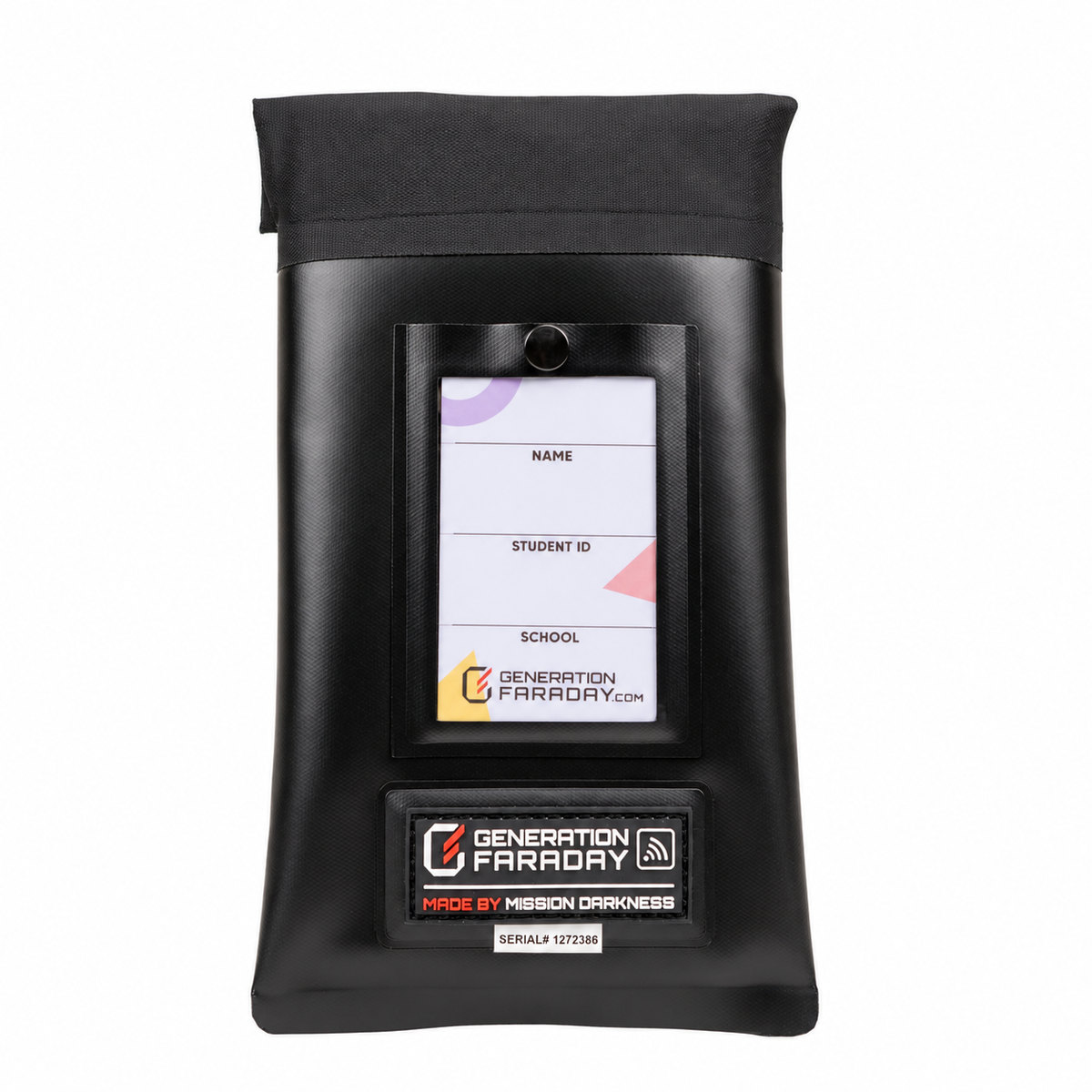
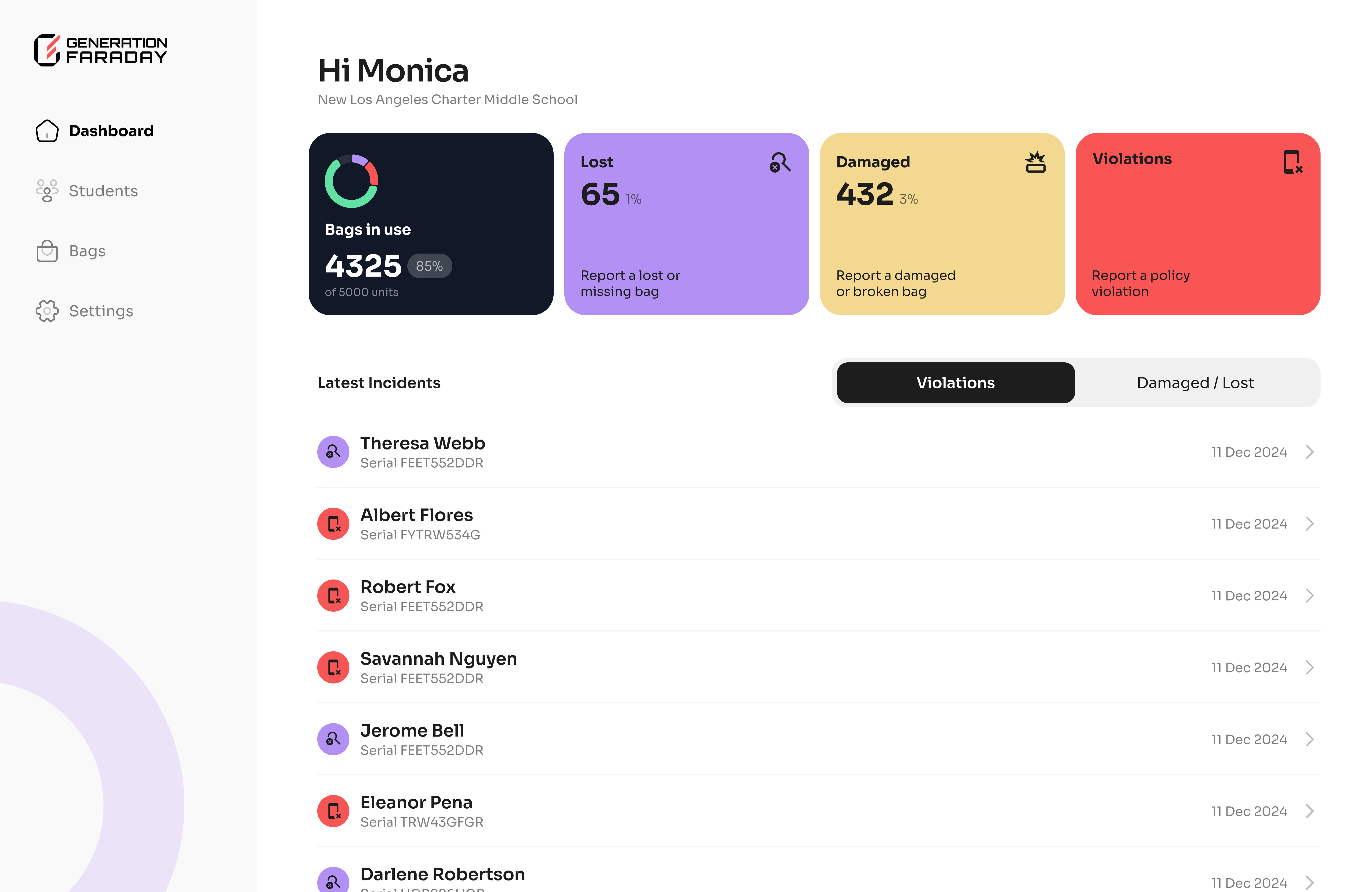
Get the right information together
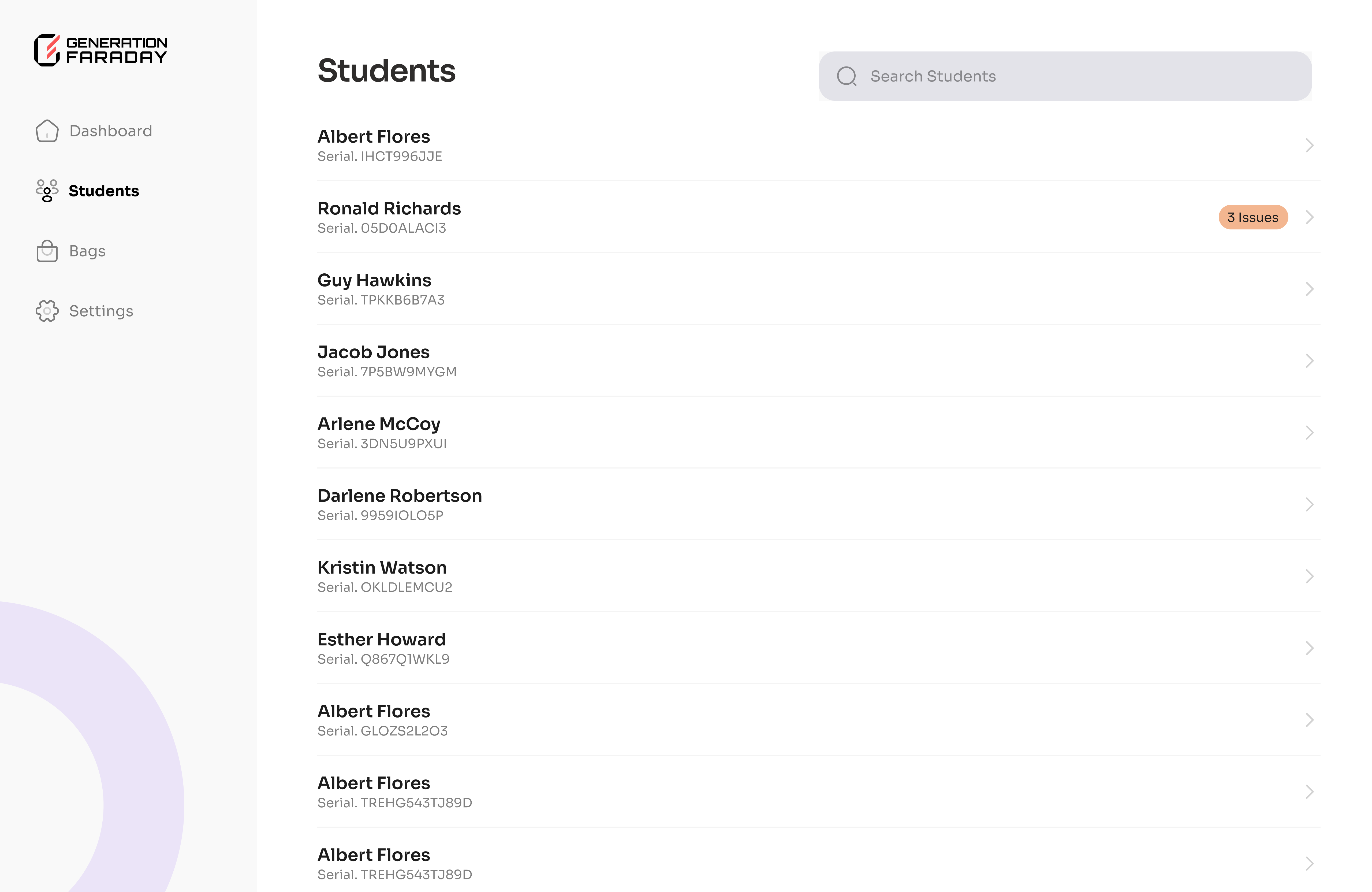
Before the rollout, gather your school email, staff list, student roster and the serial identifiers for the equipment you will assign. Confirm your account setup and import format with your Generation Faraday onboarding contact.
Choose who will manage school-wide records, who will assign equipment and who will record classroom issues. Align those responsibilities with the roles available in your account.
Connect your daily routine to the app
Set up the school account.
Use your school email and complete the onboarding workflow. Invite the staff who will use the system.
Prepare student records.
Upload the roster through your agreed setup workflow and check records before assigning equipment.
Identify bags and boxes.
Scan a supported RFID tag in the app or look up the item by serial number.
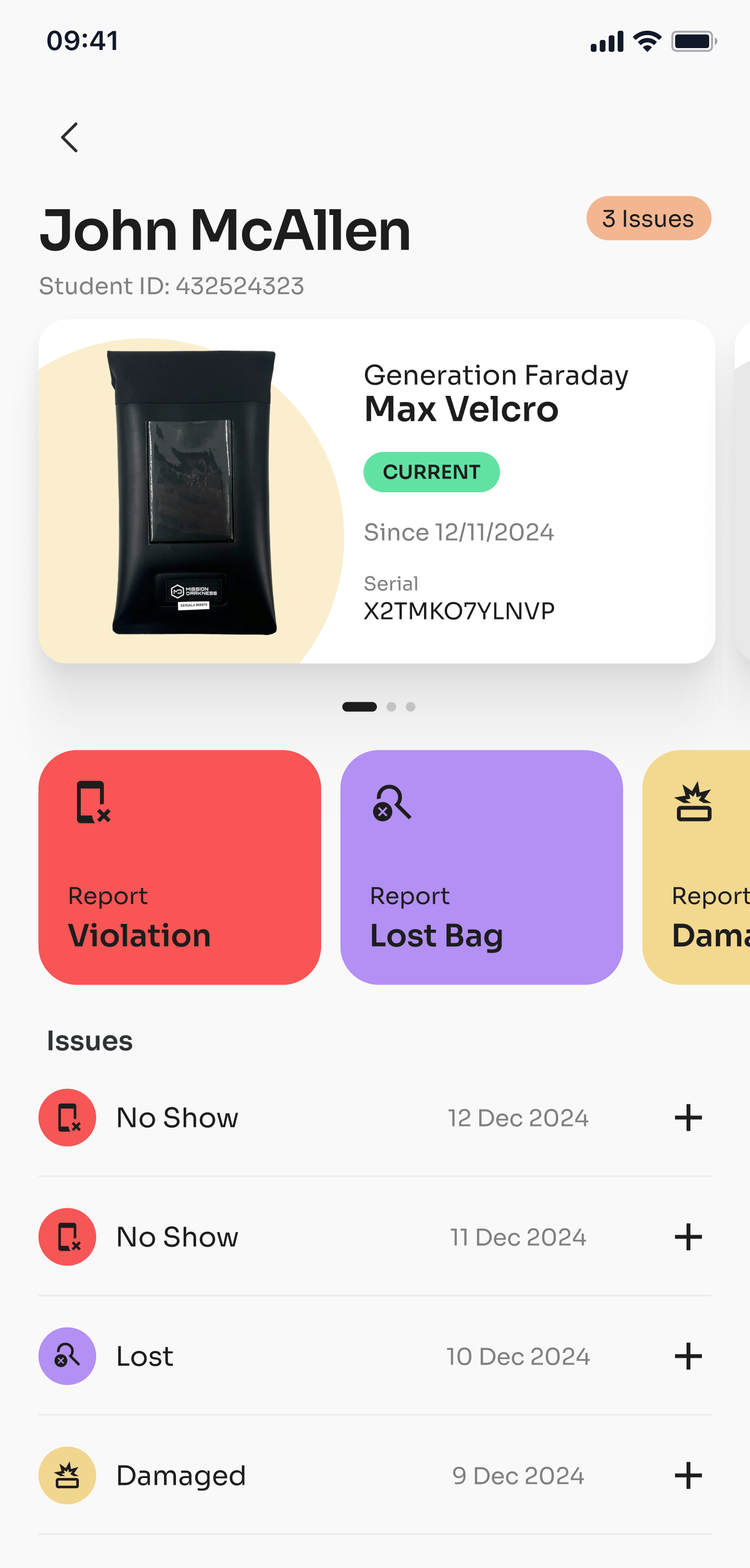
Assign the physical item.
Connect a student to a bag, or match students with the numbered spaces in a classroom box.
Practice staff reporting.
Run through recording a policy issue or a damaged item before your first full collection day.
The tag identifies the item
RFID lookup brings up the bag or box record so staff can make the next decision. It does not independently prove that a phone is inside, and it does not automatically report a policy violation.
The same physical assignment should match the record in the app. Keep a clear procedure for reassigned, missing or replacement equipment.
Use the official app guide collection
The Generation Faraday app resource folder contains the current shared setup guides. Open the collection for the materials supplied to your team, or use the desktop guide below to start from your browser.
Based on the official Generation Faraday product instructions and public setup resources. Use the illustrated guide for your exact configuration.