
What needs replacing?
Review available, assigned, lost, and damaged equipment records before planning the next order.
 The Generation Faraday apps
A clear picture for district leaders. A practical tool for school teams. Connect assignments, inventory, and staff reports in one shared program.
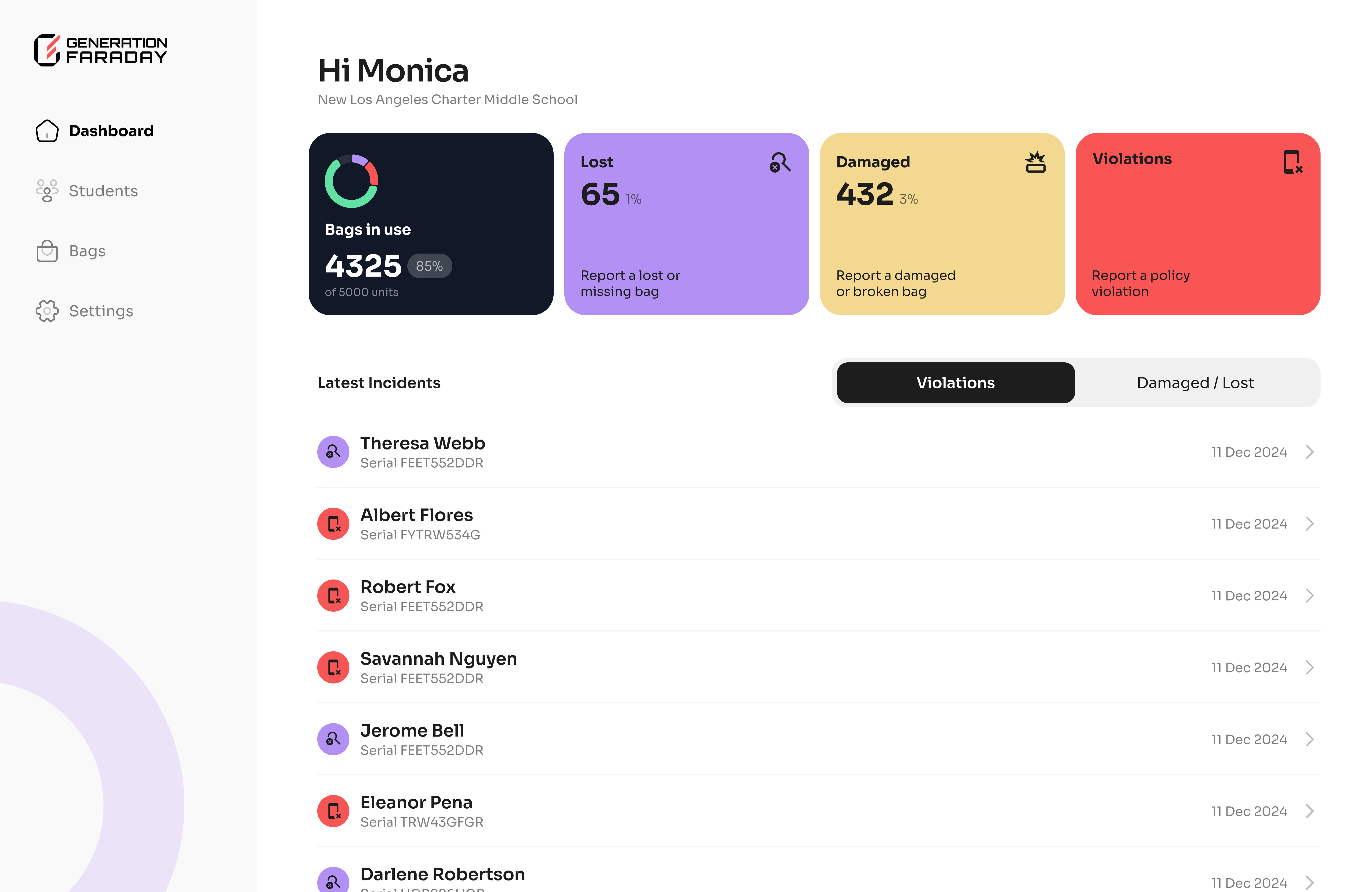
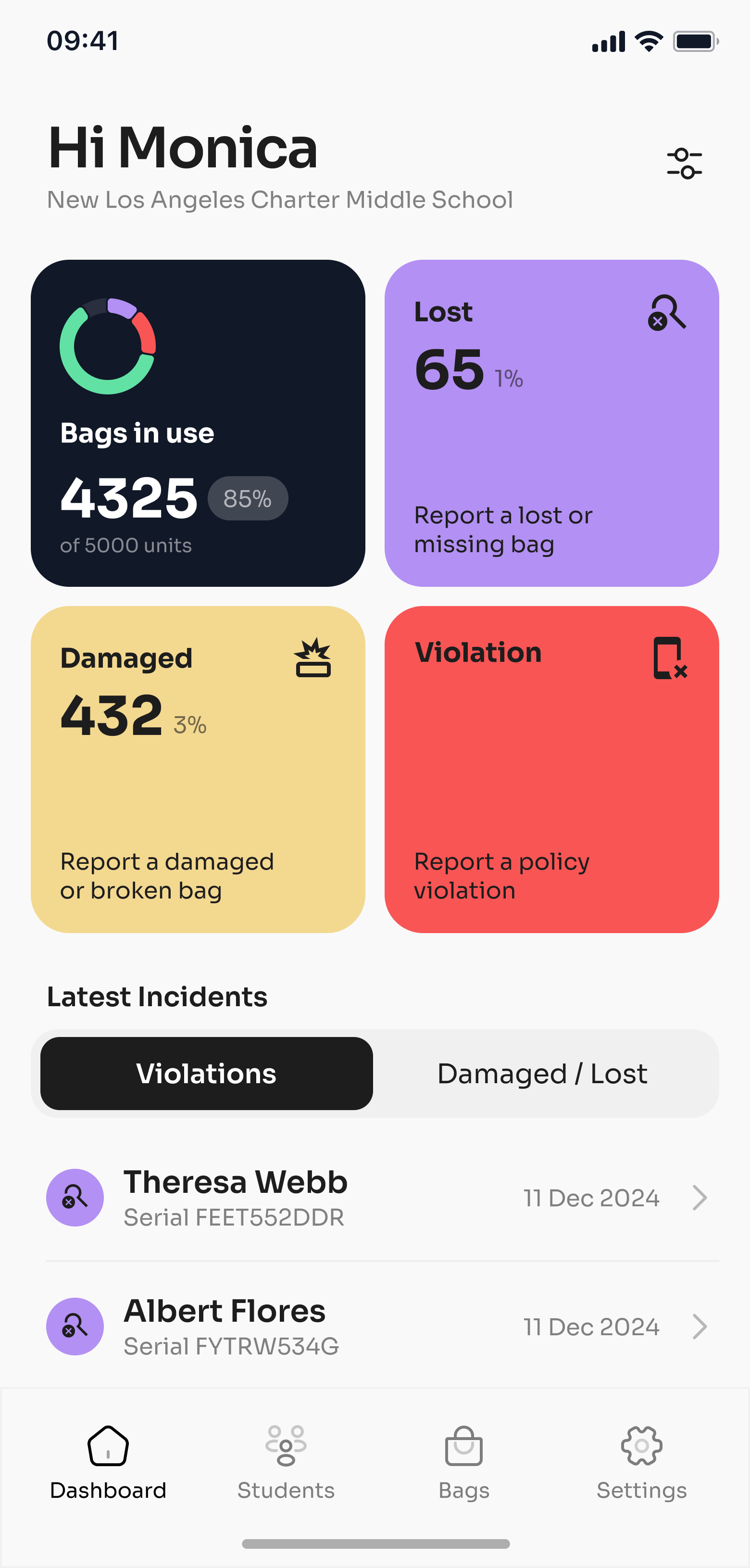
The hardware creates the phone-free routine. The apps help your people manage it—with an assignment to look up, an issue to follow up, and a record to come back to.
One connected workflow, from a student’s bag to your district’s program.
The right view for every role
Give each team a useful view of the work it owns. Explore the mobile and desktop experience.
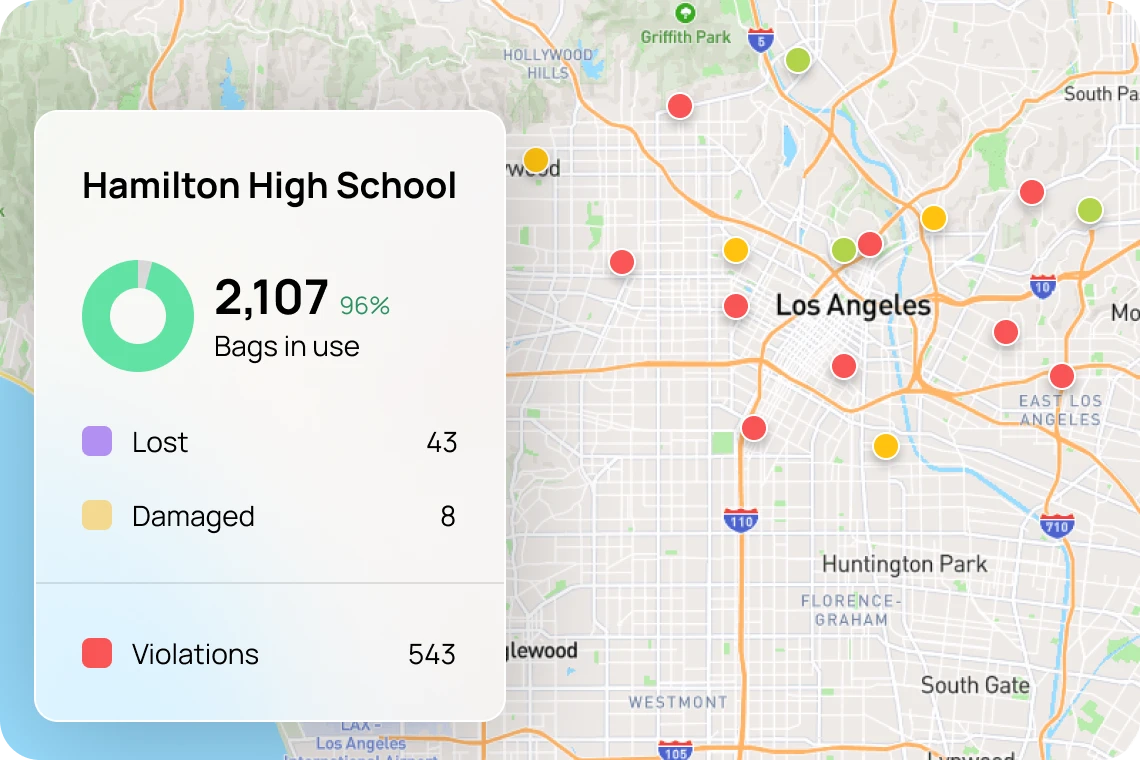
Bring inventory and reported patterns into the same conversation. See where teams need support, then work with school leaders on the next step.
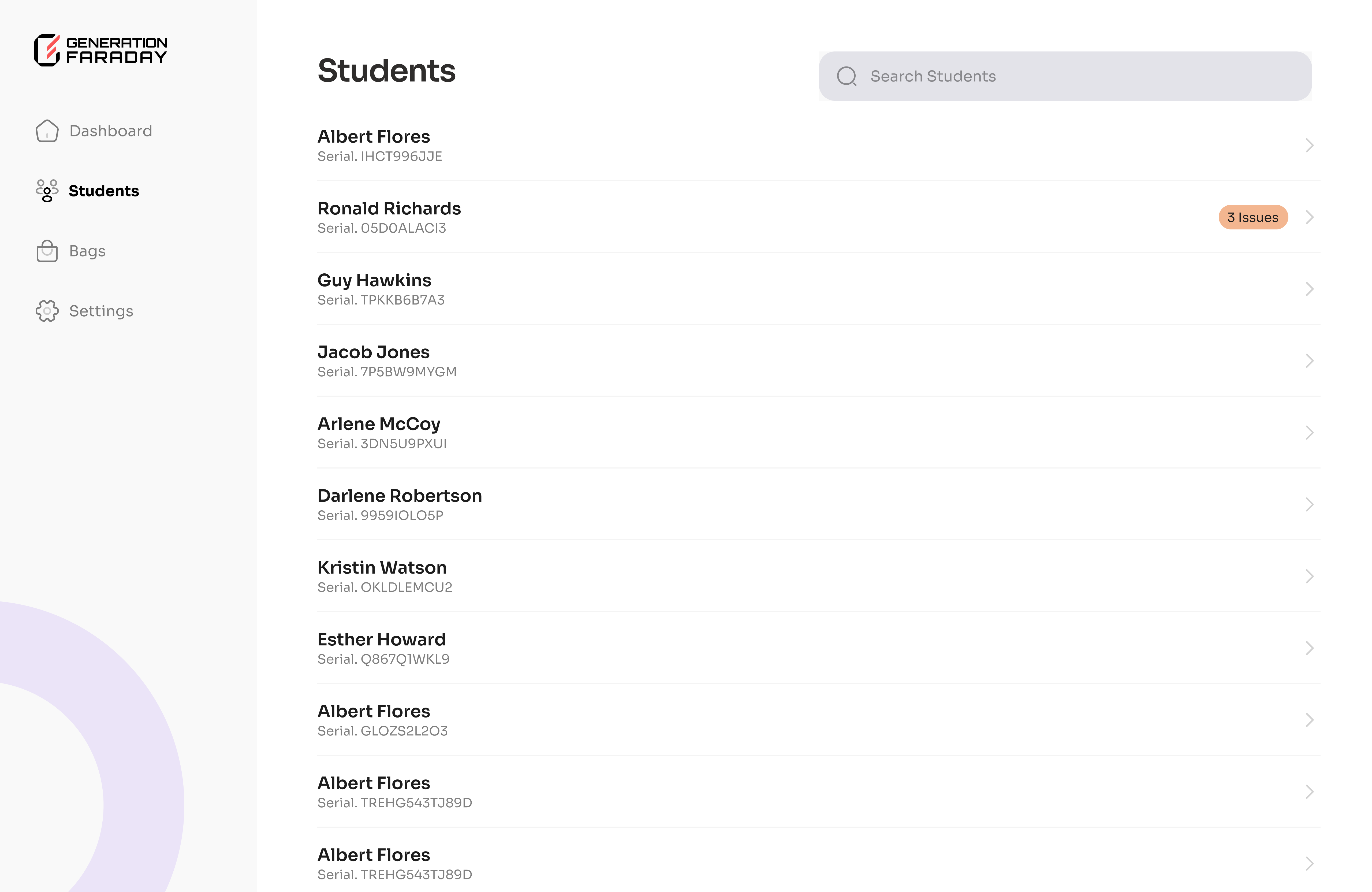
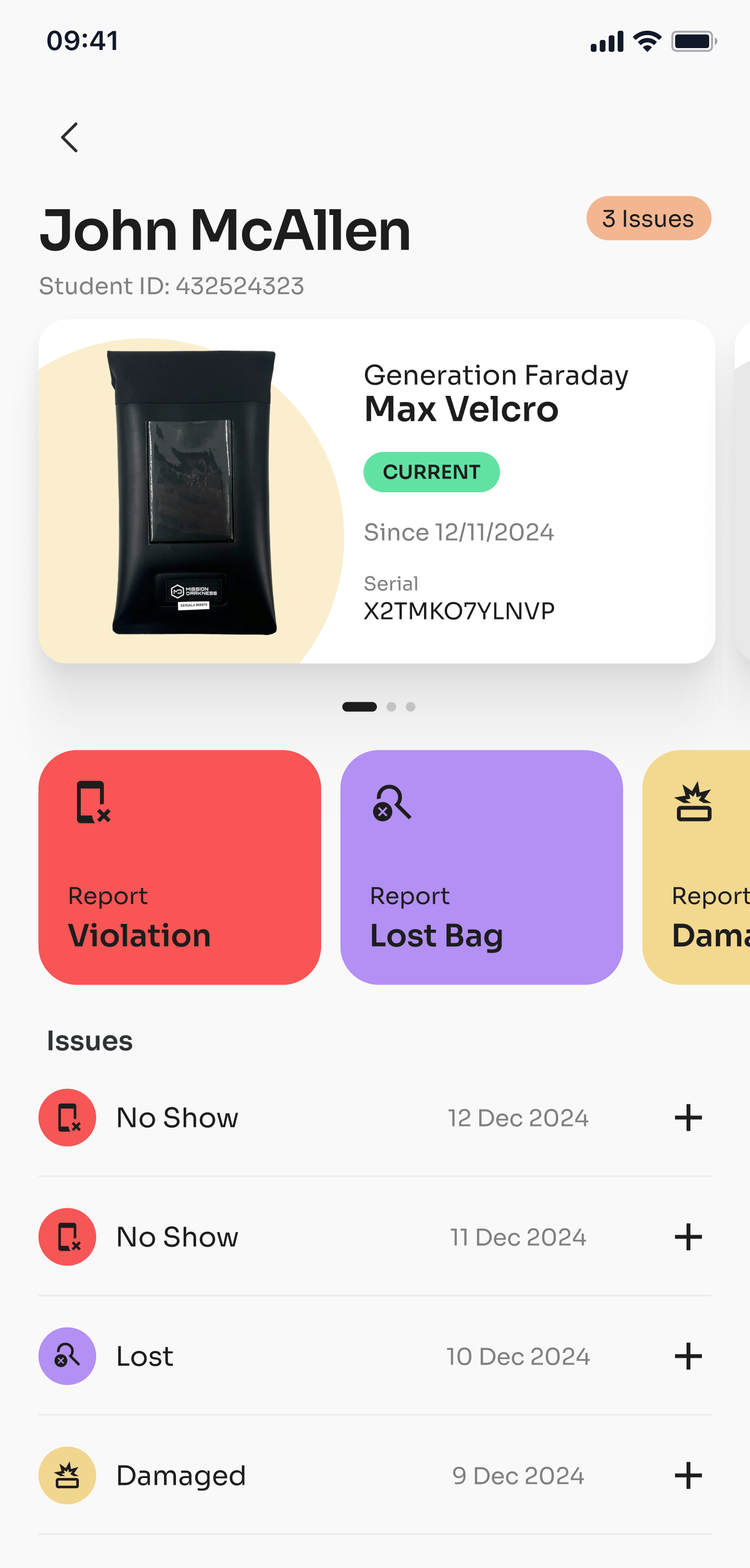
Connect your school’s student identifiers with bag assignments. Keep the details accessible when a bag is missing, damaged, or needs to be reassigned.
When a bag needs attention, staff have a consistent place to record it. Connect what happened with the right assignment, so the next person has the context.
Built around the school day
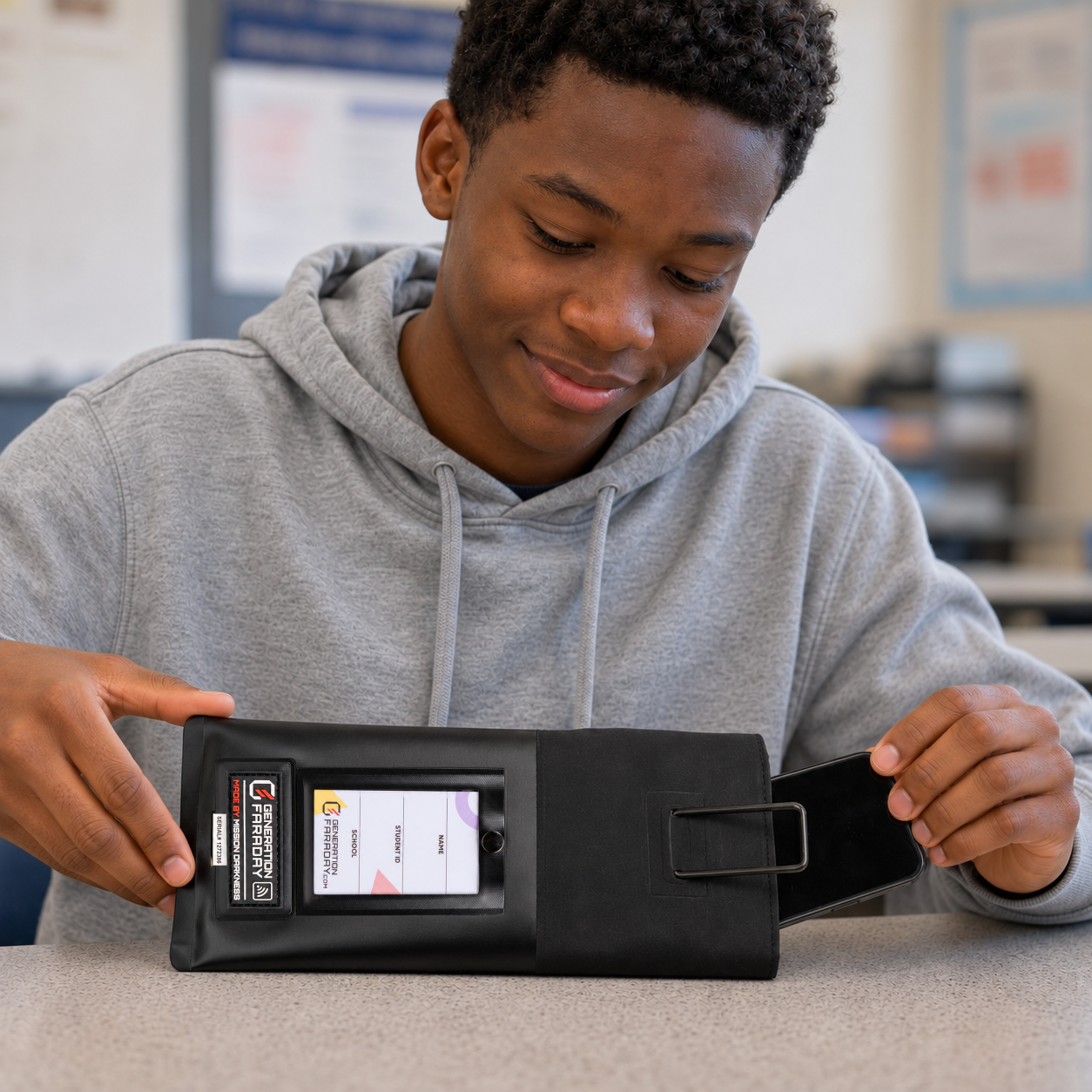
A clear routine works best when everyone knows what to do next. Keep the program’s practical details together, without making the app the center of the school day.
Serialized bag identifiers connect the equipment to its record. Staff record what needs attention; the app does not inspect phone contents or automatically detect a phone inside a bag.
Link the bag and the student identifier your school uses.
Log a lost or damaged bag, or a reported policy issue.
Give the school team the context for its next step.
Bring records together to guide support across the program.
See it in action
See how the Generation Faraday app brings school inventory, student assignments and phone-policy records into one connected workflow.
From bag to student record
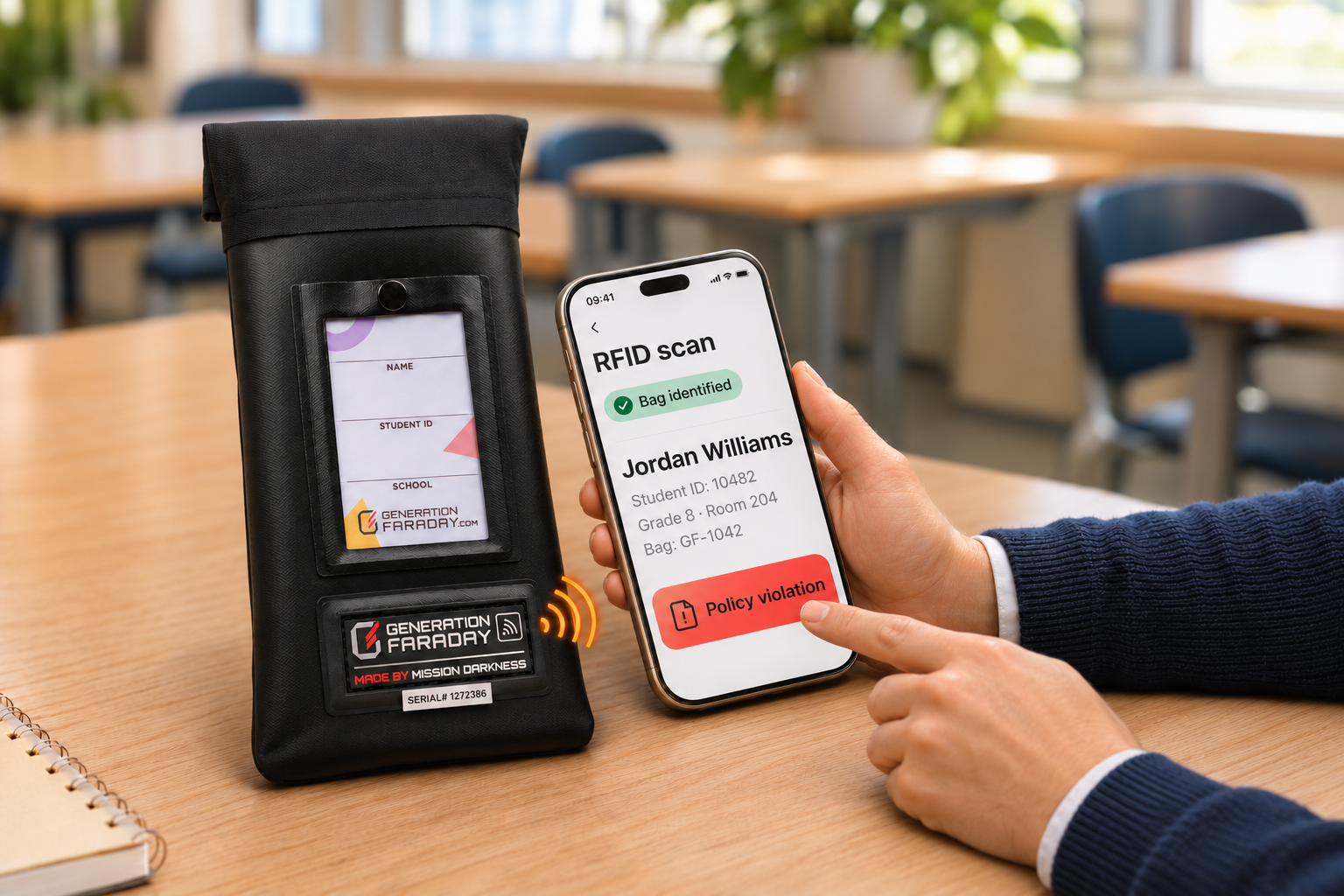
A clear connection from the bag’s rubber tag to the student record—and the staff action that follows. See the details together, with the next step within reach.
A quick identifier. A useful record.
Use the bag’s rubber RFID identifier with your supported reader and school workflow.
Find the matching bag and student record, with the details staff need.
Log a policy issue, lost bag or condition update for school follow-up.
The tag identifies the bag. It does not inspect or detect the phone inside.
Plan your app setup →For the decisions you own
Give the district office and school teams a shared starting point for the questions that come after launch.
Bring your questions to a walkthroughReview available, assigned, lost, and damaged equipment records before planning the next order.
Use reported issues to focus conversations with school leaders and support staff.
Connect assignments and staff reports so handoffs have context.
Review the program’s recorded patterns as part of your ongoing implementation conversations.
Set up with your school in mind
The app is part of the implementation conversation—from the identifiers you use to the people who need access.
Agree on bag assignments, collection or access procedures, and the records your teams need.
Work through student identifiers, inventory, users, and access requirements with our team.
Practice the everyday actions: finding an assignment, recording an issue, and handing it off.
Use your first weeks’ experience to refine the routine and the support around it.
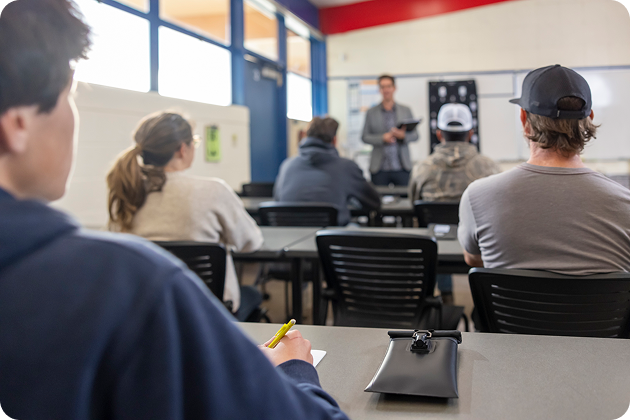
Hardware, app setup, and implementation support belong in the same conversation.
See how we work with schoolsBefore you decide
Use a walkthrough to see the current app and work through your school’s requirements.
Both. Generation Faraday has desktop web and mobile interfaces. The mobile app is available for iOS and Android. Our team can show you the views and access that fit each role.
No. Bag identification, inventory records, and staff reporting are different from detecting a phone. The bag provides signal shielding when properly closed; staff run the school’s checks and access procedures.
Bag assignments, inventory and condition information, and reported issues associated with the school’s records. It does not monitor phone contents or track a phone’s location. Discuss your identifiers, users, access, and data requirements during setup.
Ask us to demonstrate your planned setup. The current app overview includes bag records and numbered storage assignments. We will help you map the supported workflow to the equipment your school chooses.
No. Bring your student and school counts, the hardware you are considering, and an outline of your daily routine. We can walk through assignments, staff actions, district views, and setup together.
See your program in the picture
See the app, ask the operational questions, and leave with a clearer plan for your team.
Request an app walkthrough

Your school’s setup and access come first. Our team can help you get connected.
Open the web app